You pay for a fast connection, and yet that file crawls. Before you blame your provider, remember that a download passes through many links: the server, the route across the internet, your router, your Wi-Fi and finally your PC. Any one of them can be the bottleneck. Work through these nine checks in order.
1. Measure your actual line speed
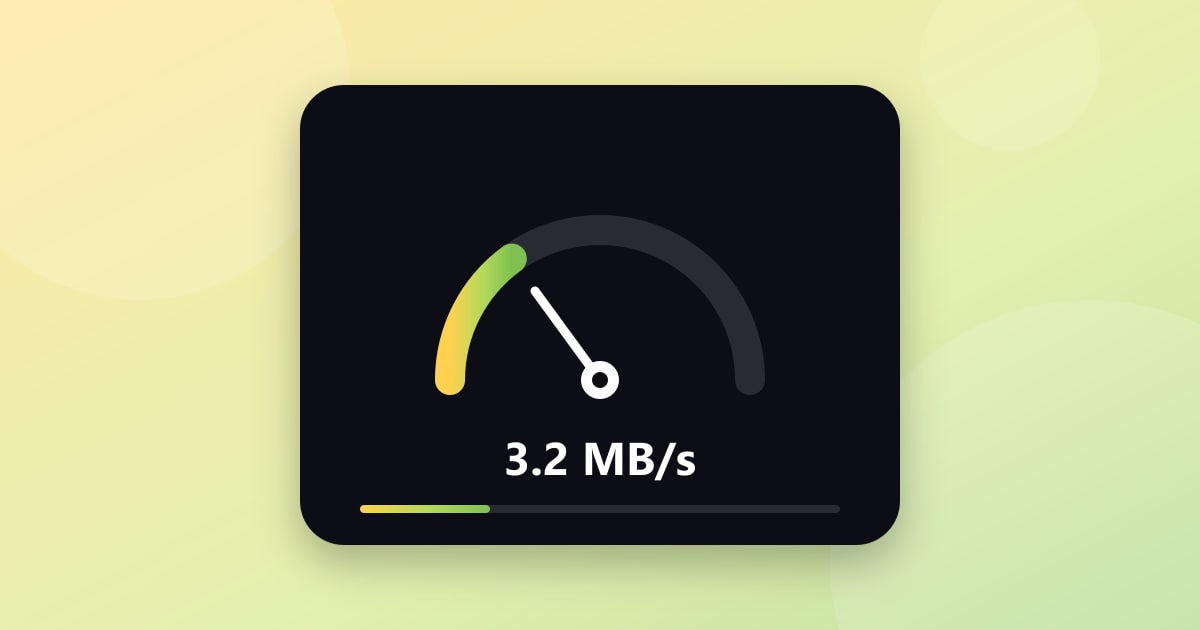
Run a speed test on the same device. If the result matches what you pay for, your line is fine and the slowness is somewhere else. If it is far lower, go straight to checks 4 to 7. FlowGet has a built-in speed test that measures latency, download and upload.
2. Try a different file from a different site
If other sites download at full speed, the original server is the limit. Many servers cap the speed of each connection, or slow down free users. You cannot fix a slow server, but you can sometimes work around a per-connection cap (see check 8).
3. Check what else is using the network
Cloud backups, game launchers, Windows Update, streaming and other devices share your line. Open Task Manager > Performance > Ethernet or Wi-Fi to see what is moving data. Pause the big uploads and see if the download speeds up.
4. Move closer to the router, or plug in
Wi-Fi speed drops quickly with distance and walls, and the 2.4 GHz band is crowded. A cable gives you a steady speed, and the 5 GHz band is faster at short range. If you cannot run a cable, move the PC or the router.
5. Turn off your VPN for the test
A VPN adds distance and encryption overhead, and shared VPN servers get busy. Disconnect it for a single download. If speed jumps, try another VPN server or a different protocol.
6. Restart the router and the PC
It is a cliché because it works: routers accumulate bad state, and a restart clears congested connections and stale DNS entries.
7. Check that your disk is not the limit
Downloads are written to disk. A nearly full drive, a slow USB disk or a hard drive busy with another task can throttle a fast connection. Download to your main SSD to test. Also make sure the drive has free space for the whole file.
8. Use more than one connection
Browsers download a file over a single connection. If the server limits each connection to, say, 1 MB/s, you get 1 MB/s even on a very fast line. A download manager splits the file into parts and fetches them at the same time, so several capped connections add up.
FlowGet uses up to 32 connections, starts with a few and adds more while the speed keeps improving, and backs off if the server starts refusing connections. If one part is slow, another connection takes over its remaining work instead of waiting. You can see how this behaves in the speed results on our home page.
Be realistic: when the limit is your own line, or a server that allows only one connection, more connections cannot help.
9. Download at a better time
Servers and your local network are busiest in the evening. Large downloads often finish faster late at night or early in the morning. Our guide to limiting download speed by time of day shows how to schedule downloads and keep your daytime browsing smooth.
When nothing helps
If every site is slow and the speed test confirms it, contact your provider with the results. If only one site is slow, wait or try the file from a mirror. And if the download keeps stopping rather than running slowly, read how to resume a broken download.