A big download can swallow your whole connection. Video calls stutter, pages load slowly and everyone in the house notices. You want the opposite pattern: gentle during the day, full speed when nobody is using the network. Here is how to get it.
Why capping works
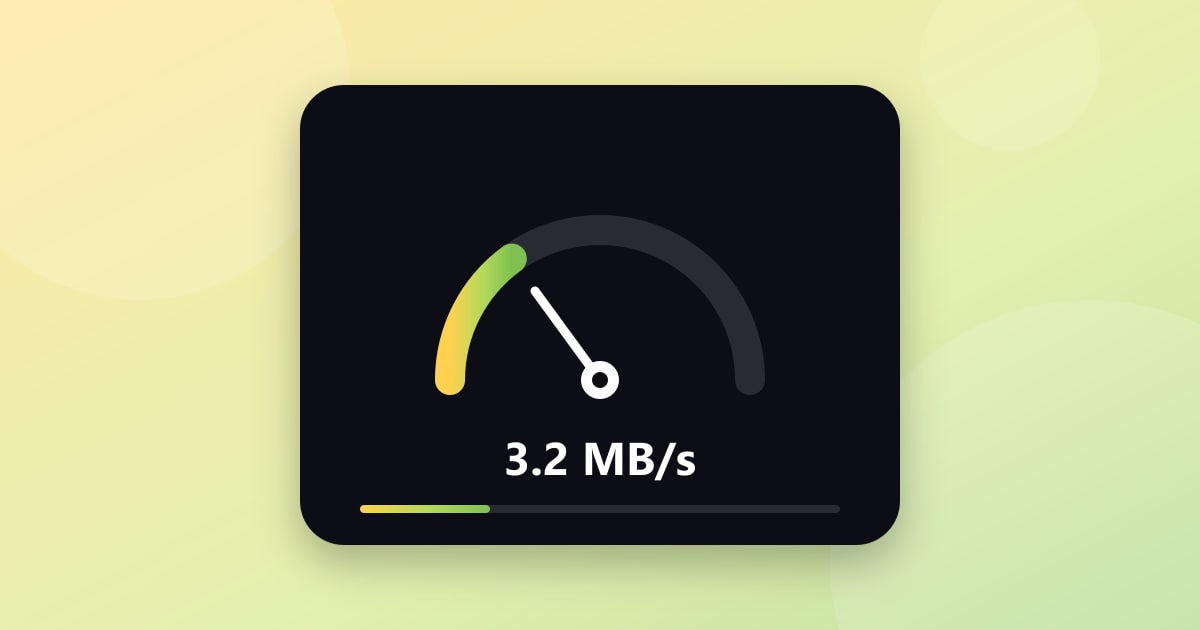
Your internet line has a fixed capacity. A download that uses every bit leaves nothing for other traffic, and small, time-sensitive traffic like calls and clicks suffers most. Capping the download to, say, 70% of your line keeps the rest free, and calls stay smooth.
Option 1: Windows settings
Windows has a few built-in controls, though none is a simple per-app limit:
- Windows Update: Settings > Windows Update > Advanced options > Delivery Optimization > Advanced options lets you limit the bandwidth used for updates.
- Metered connection: Settings > Network & internet > Wi-Fi > your network > Metered connection tells Windows to hold back some background downloads.
- QoS policy: the Local Group Policy Editor (not available in Home editions) can throttle outgoing traffic by application. It is aimed at administrators and is easy to set up wrongly.
Option 2: your router
Many routers offer QoS or bandwidth control that prioritises traffic or limits individual devices. It affects every program on the PC, and it is available only if your router supports it.
Option 3: a download manager
Setting the limit where the downloads happen is the simplest approach, and it can follow a schedule. In FlowGet:
- A global limit. Set a maximum speed for all downloads (Options > Connection), or for one download, and change it while it runs.
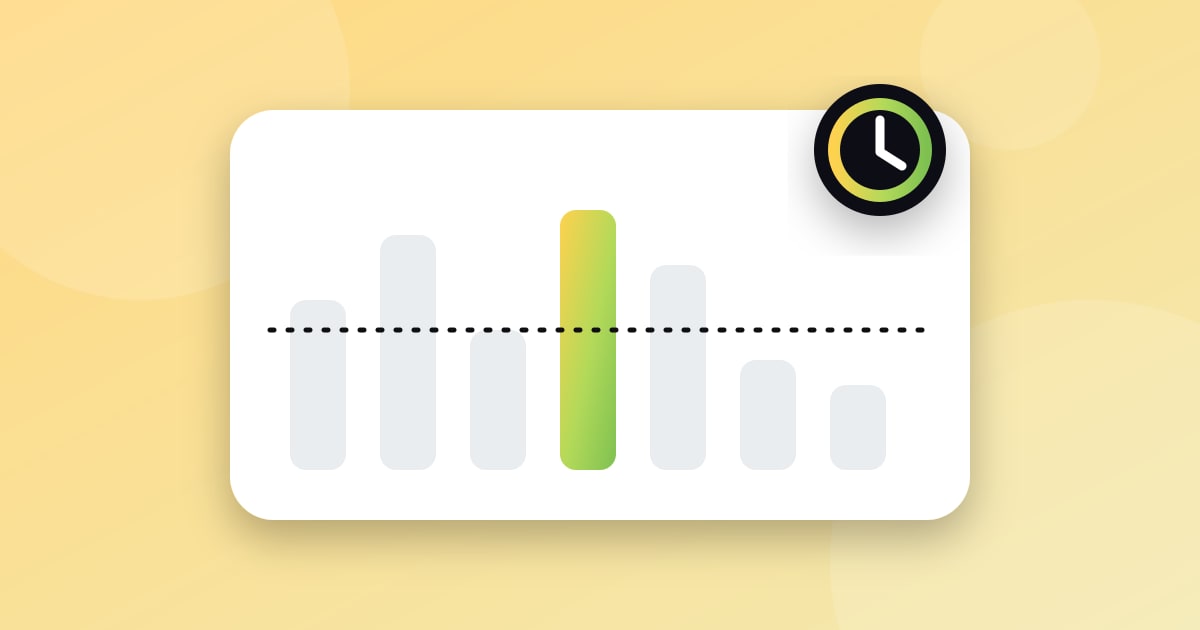
- Schedules. In Options > Bandwidth add rules with days and times. Each rule can limit to a speed, pause downloads, or lift the limit. For example: limit to 2 MB/s on weekdays from 09:00 to 17:00, and no limit from midnight to 06:00. Windows that run past midnight work as you would expect, and the stricter limit always wins.
- Slow mode. One click in the bar at the bottom of the window holds downloads at a gentle speed (1 MB/s by default) while you are in a meeting.
- Metered and hotspot connections. Turn on pause on metered connections and FlowGet holds downloads when Windows marks the network as metered, or when you connect to a Wi-Fi name you listed as a hotspot. They resume by themselves on a normal network, and a “Download anyway” button is there when you need it.
A badge in the status bar always shows why downloads are limited or held, for example “Limited to 2 MB/s (Mon-Fri 09:00-17:00)”.
One honest limit: these controls apply to normal file downloads. Videos fetched with yt-dlp are not throttled by them.
How much to leave free
A rough guide for the cap during work hours:
| Your line | Good cap for downloads |
|---|---|
| 20 Mbps | 1 to 1.5 MB/s |
| 100 Mbps | 6 to 8 MB/s |
| 500 Mbps | 30 to 40 MB/s |
(MB/s are megabytes per second; line speeds are in megabits, so divide by eight.) Start there and adjust until calls stay smooth.
Schedule heavy downloads for the night
If a download is huge, do not fight for bandwidth during the day. Add it to a queue that starts at night, and choose what happens afterwards: do nothing, sleep, shut down or run a program. Together with schedules, this gets large downloads done without anyone noticing.
For other reasons a download may be slow, see 9 fixes for slow downloads.