You find a video, the player works, but there is no download button, and the address of the media file is nowhere to be seen. That is because most modern video is not one file. It is a stream: a playlist that points to hundreds of short pieces. This guide explains what is going on and how to save a stream you are allowed to keep.
Only download videos you own, that are in the public domain or licensed for download, or that you have permission to save. Videos protected by DRM (paid streaming services) are not something to download, and FlowGet refuses them.
What HLS and DASH are
The two common streaming formats are:
- HLS (HTTP Live Streaming) uses a playlist file ending in
.m3u8. - DASH (Dynamic Adaptive Streaming over HTTP) uses a manifest ending in
.mpd.
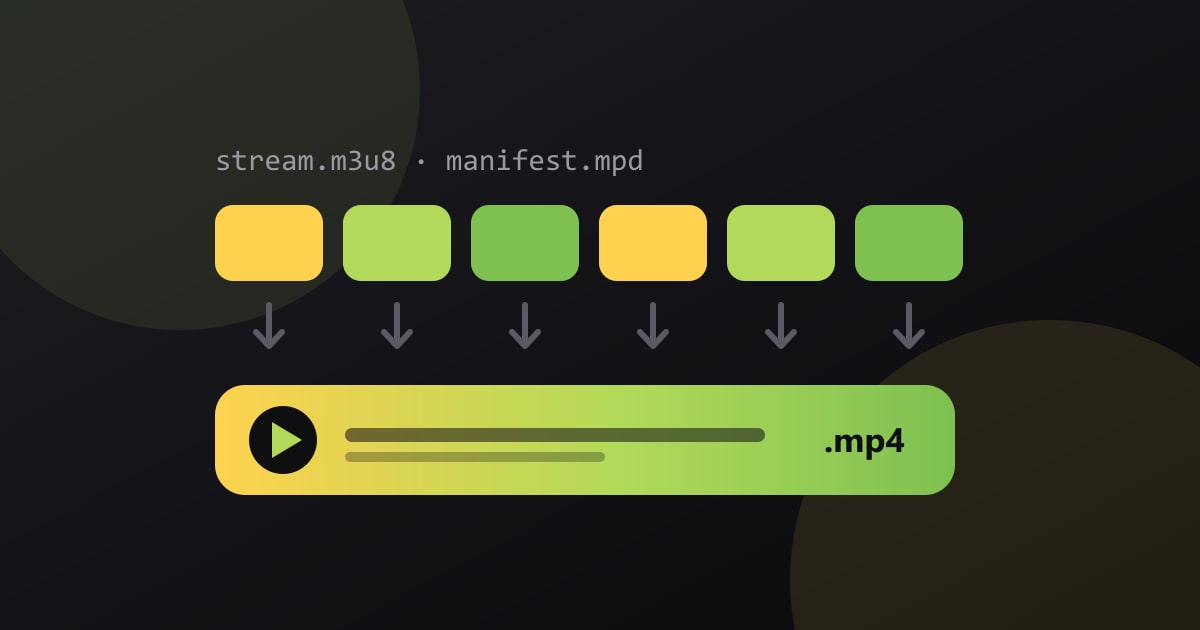
Both work the same way. The video is cut into segments of a few seconds. A master playlist lists the available qualities (for example 416p, 640p, 960p, 1280p), and each quality has its own playlist of segments. The player picks a quality that suits your connection and fetches the segments one after another. That is why you cannot “right-click, save video as”: there is no single video file to save.
Finding the stream address
If you are comfortable with browser developer tools:
- Open the video page and press
F12, then choose the Network tab. - Type
m3u8ormpdin the filter box and start the video. - The playlist request appears. Copy its address.
Easier: a download manager with a browser extension notices these playlists for you. FlowGet’s extension lists the streams it sees on the page and shows a quality menu on the video.
Option 1: yt-dlp and ffmpeg
yt-dlp is a free command-line tool that understands thousands of video sites and stream formats, and ffmpeg joins the pieces without re-encoding (so there is no quality loss).
yt-dlp "https://example.com/video/master.m3u8"To see the qualities first and choose one:
yt-dlp -F "https://example.com/video/master.m3u8"
yt-dlp -f FORMAT_ID "https://example.com/video/master.m3u8"
Replace FORMAT_ID with the ID from the first command’s list.
You need both programs installed and on your PATH, which is the part many people find fiddly.
Option 2: ffmpeg alone
For a simple, unprotected HLS playlist, ffmpeg can copy the stream straight into a file:
ffmpeg -i "https://example.com/video/master.m3u8" -c copy video.mp4This takes the best stream by default. It is quick, but you have less control over quality and no resume if the connection drops.
Option 3: a download manager
FlowGet puts this into the video itself. A small Download button appears on the video with a list of qualities and a recommended choice (the best up to 1080p), with an audio-only option. For pages where the video is hidden behind a stream, it uses the playlist the player loaded. The first time you need yt-dlp or ffmpeg, FlowGet downloads them for you and checks them against the publisher’s checksum, so there is no PATH to edit. See the video section of the feature list.
Common problems
- The playlist stops working after a while. Stream addresses often contain a temporary token. Download soon after finding the address, or get a fresh one from the page.
- The video has no sound, or the sound is separate. DASH keeps video and audio apart. ffmpeg or yt-dlp must merge them.
- You get a very small file. You may have saved the playlist (a text file) rather than the video. Make sure the tool is told to fetch the segments.
- “This video is protected.” The stream uses DRM. It cannot be downloaded.
Related
New to download managers? Read download managers versus browser downloads to see what else they do better.